Ongoing topic · Compiled September 10, 2026
GPT Image 2.5: photos, styles and edits
Explore photo remixes, poster styles, focused edits and sketches—and how they fit everyday creative work.
01Start with a photo中文
Make an image, then keep shaping it
On September 8, OpenAI introduced ChatGPT Images 2.5, connecting photo remixes, focused edits and sketches. This topic starts with the pictures, then shows where to begin.
- · OpenAI introduces Images 2.5
- · Axios publishes a hands-on account
- · Astria shares a multi-reference fashion example
Sources and notes
- OpenAI announcement ↗Official · September 8Features and the complete examples.
02Photo remixes中文
New clothes, a familiar face
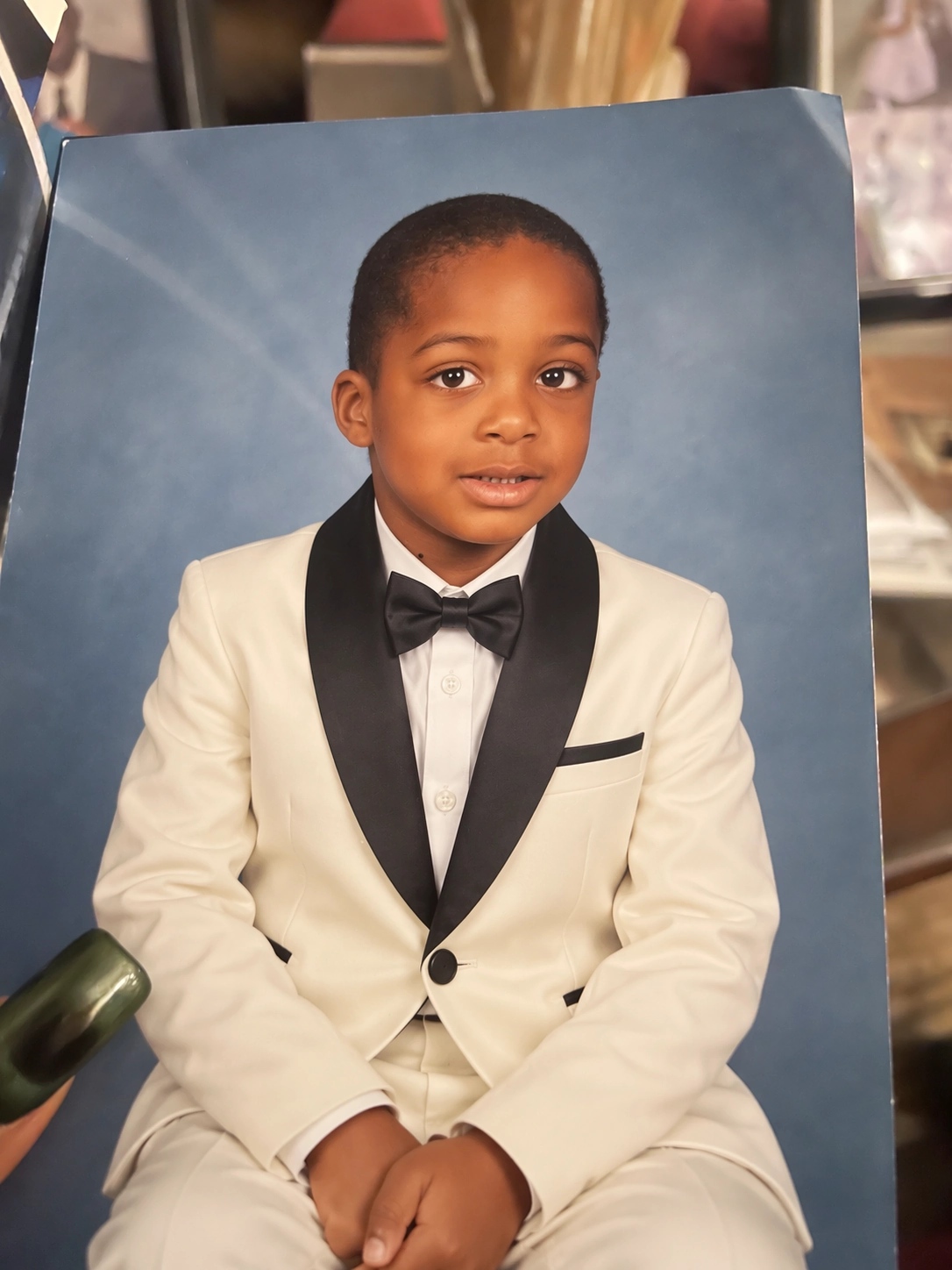
In this official pair, a red shirt becomes an ivory suit while the pose, blue backdrop and photograph’s edges remain recognizable. The pair makes the intended changes and retained details easy to see.
Family albums, holiday cards and avatars can begin with a photo you already have. Describe the person and setting to retain, then the clothing, lighting or style to change. That gives a clearer brief than “make it look better.”
Sources and notes
These are OpenAI’s published examples; we did not reproduce this photo edit.
- Original photo-edit example ↗Official exampleOpen each image to inspect it.
03Successive edits to a Chinese travel graphic中文
Refine a travel guide, one edit at a time
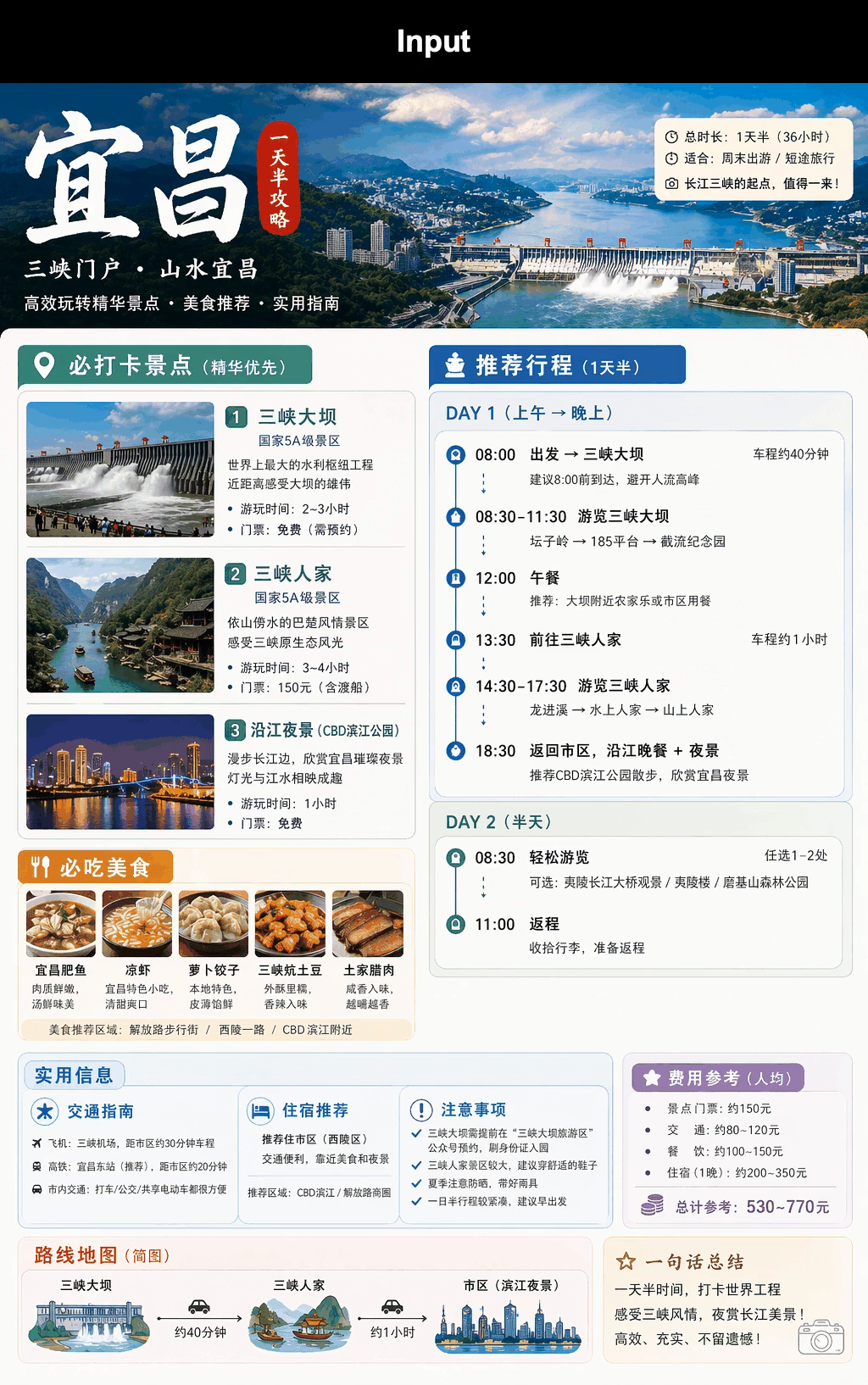
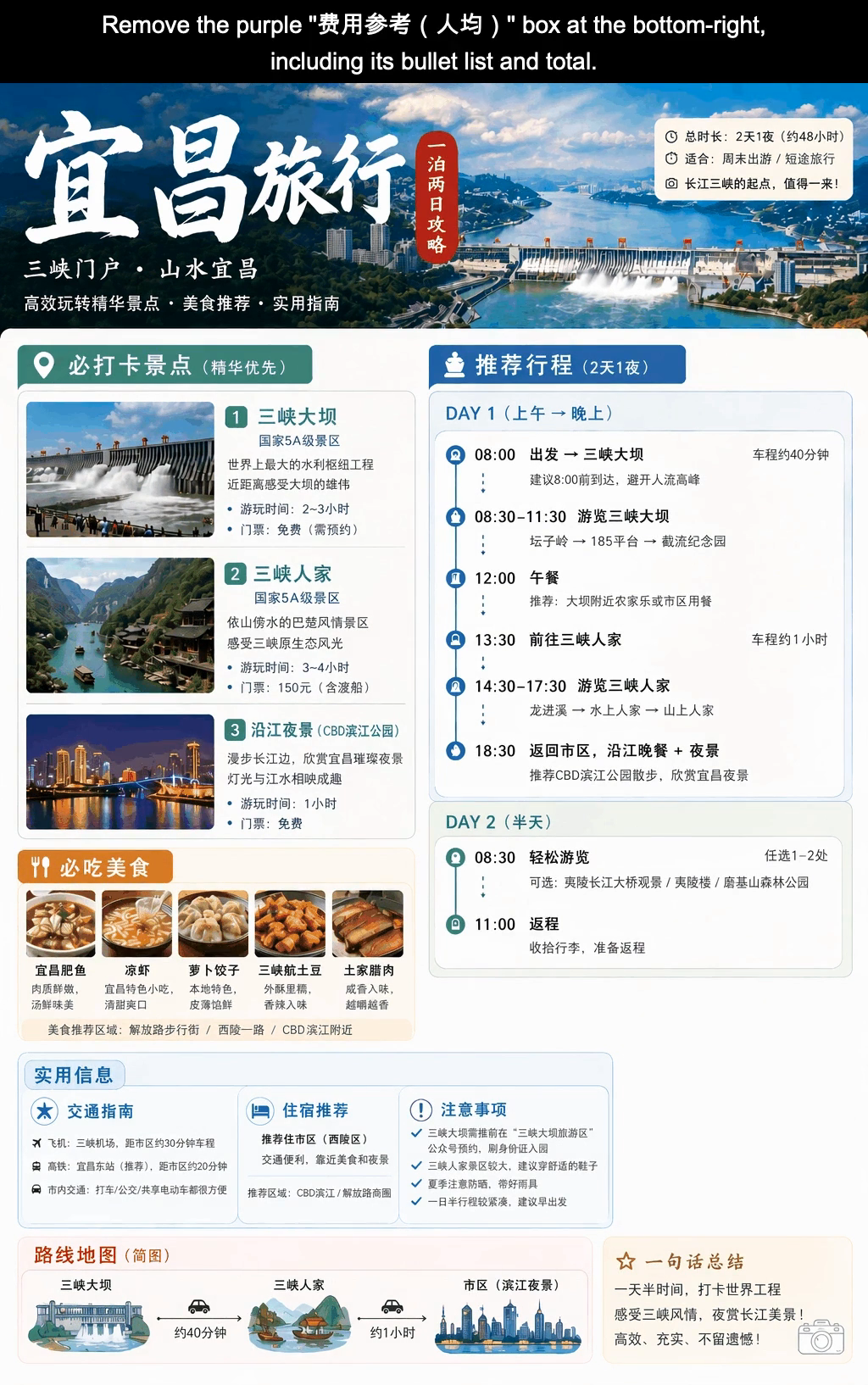
- Update the main title
Change the upper-left title from Yichang to Yichang Travel.
- Revise the red badge
Change the badge beside the title from a one-and-a-half-day guide to a two-day, one-night guide.
- Update the trip duration
Change the duration in the upper-right white box to two days and one night, about 48 hours.
- Revise the itinerary heading
Change the duration in the blue itinerary heading from one and a half days to two days and one night.
- Remove the budget module
Remove the purple budget box at the lower right, including its list and total.
Based on the five instructions in the official video; open either image to view the complete frame. Read the source ↗
A travel graphic for your companions brings together places, food, routes and timing. This OpenAI example starts with an existing Yichang guide, revises its title and trip labels, then removes the budget module. The original video shows the instruction for every edit.
Compare the upper-left title, upper-right duration and newly empty area at the lower right, then look at the retained photos, food and route. For a travel plan, event guide or work explainer, this suggests a useful editing approach: point to the area, specify the new wording or what to remove, and continue refining the existing image.
Sources and notes
This is OpenAI’s targeted-edit example. The final frame still contains a half-day Day 2, an 11:00 return and a one-and-a-half-day summary; it is not a fully replanned itinerary. Prices in the sample are not current travel information. We extracted complete frames from the same video without reproducing the generation.
- Watch the five edits ↗OpenAI example · 6 secondsThe input, successive instructions and results for one Chinese travel graphic.
- Images 2.5 announcement ↗OpenAI · September 8Choose Travel infographic in the multi-turn editing section for the complete example.
04Find a visual style中文
Posters, landscapes and game assets need different treatments
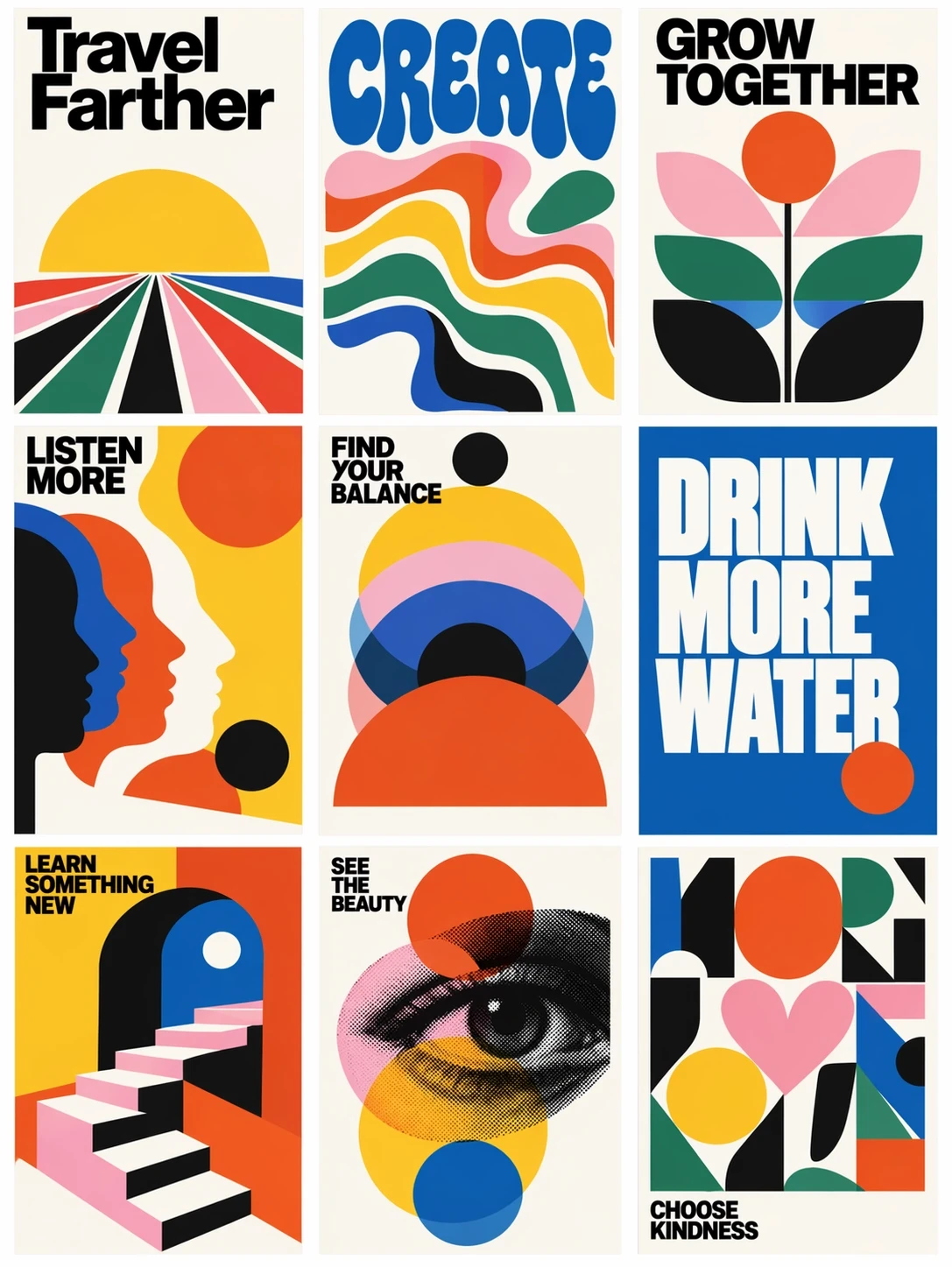
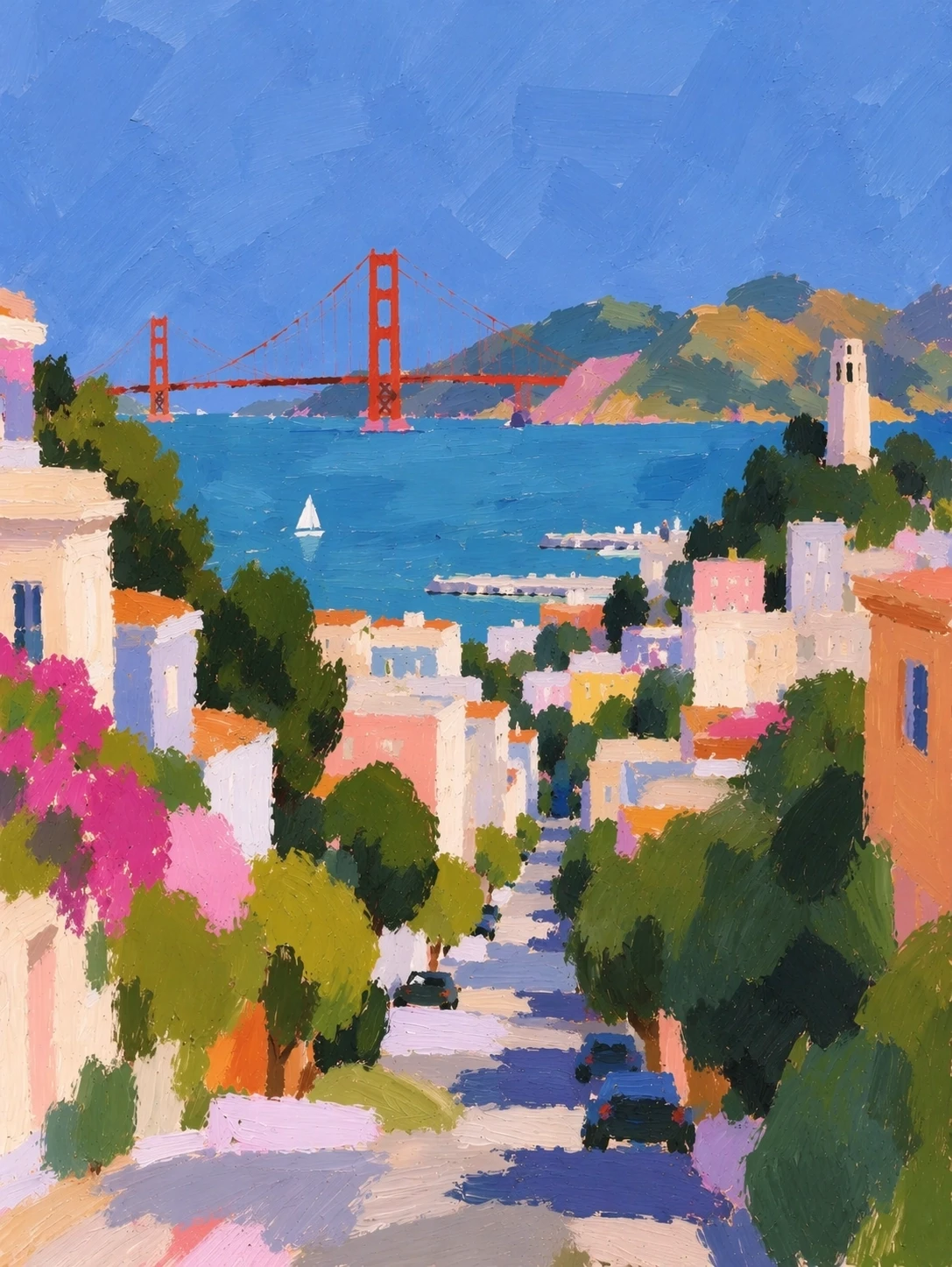
The poster grid uses large lettering, geometry and bold colors; the cityscape uses loose brushwork for streets and light. Match the treatment to the purpose: an event needs prominent information, while a travel memory can emphasize atmosphere.
Ask whether an image helps the reader understand the subject before judging its polish. Consider the headline, colors and subject placement together so the message remains visible.
Pixel art can also be prepared for use as a game asset. GameTorch user Tom#1 shared an edited fish image with requests to correct the crop, show the whole subject, upscale and touch it up, and retain a transparent background. The page preserves the editing instructions and final image. Keeping the whole subject in frame and the background transparent also makes this kind of image easier to place in game icons or item interfaces.
Sources and notes
- More creative examples ↗Official galleryPosters, paintings and presentation materials.
- GameTorch pixel-fish editing record ↗Public work by Tom#1 · Shared September 10, Beijing timeEditing instructions and the final image; the work page gives no creation date.
05Get started中文
Describe it, point to it, or sketch it
- Set the purpose
A card, poster or article image.
- Give a visual cue
Upload a photo or sketch the arrangement.
- Refine a detail
Point to the area and describe the change.
Workflow illustration; see official help for entrypoints. Read the source ↗
Describe the image in ChatGPT, or upload one and request an edit. Select an area or continue the conversation to revise it. On mobile, open Sketch from the @ menu, draw an arrangement, then add the subject, colors and style.
For a starting point, browse Templates in Images. A simple brief might be: “Make a weekend picnic invitation with room for a headline; use the circles in my sketch as plates.” Establish the purpose and arrangement, then refine the details.
Sources and notes
Entrypoints vary by device and rollout. The help page currently says Templates are not yet in Work mode, and selected-area edits may extend beyond the selection.
- ChatGPT image help ↗Official helpCreation, editing, sketches and templates.
06Compose with several references中文
Bring a person, a dress and a bag into one scene
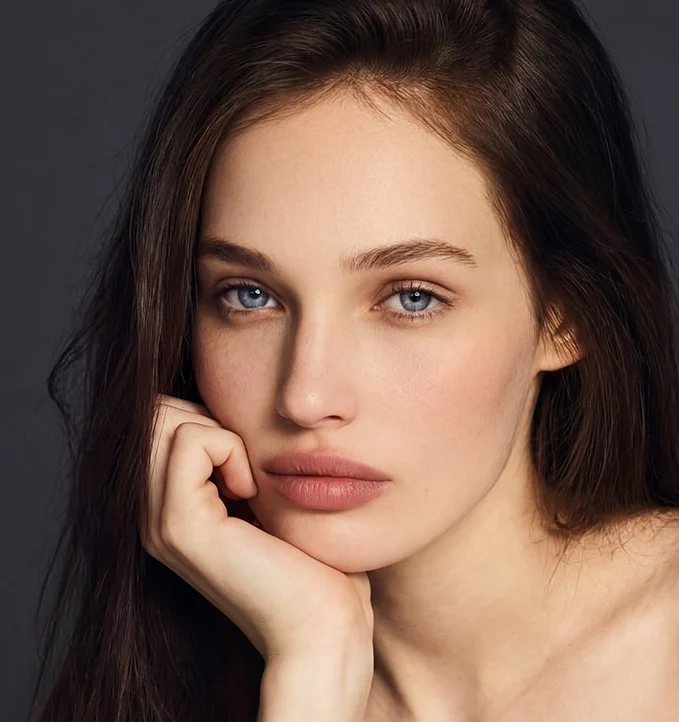
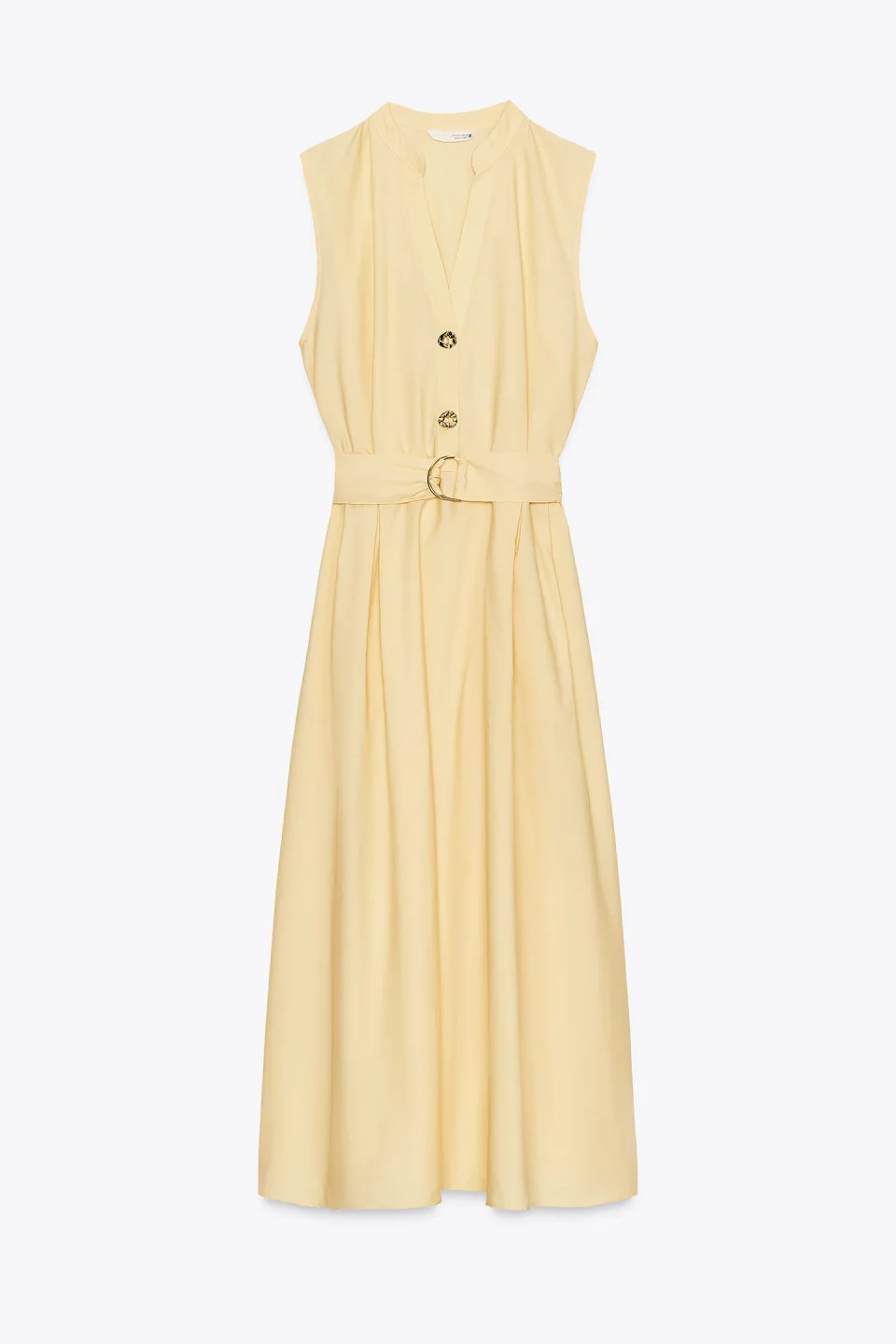
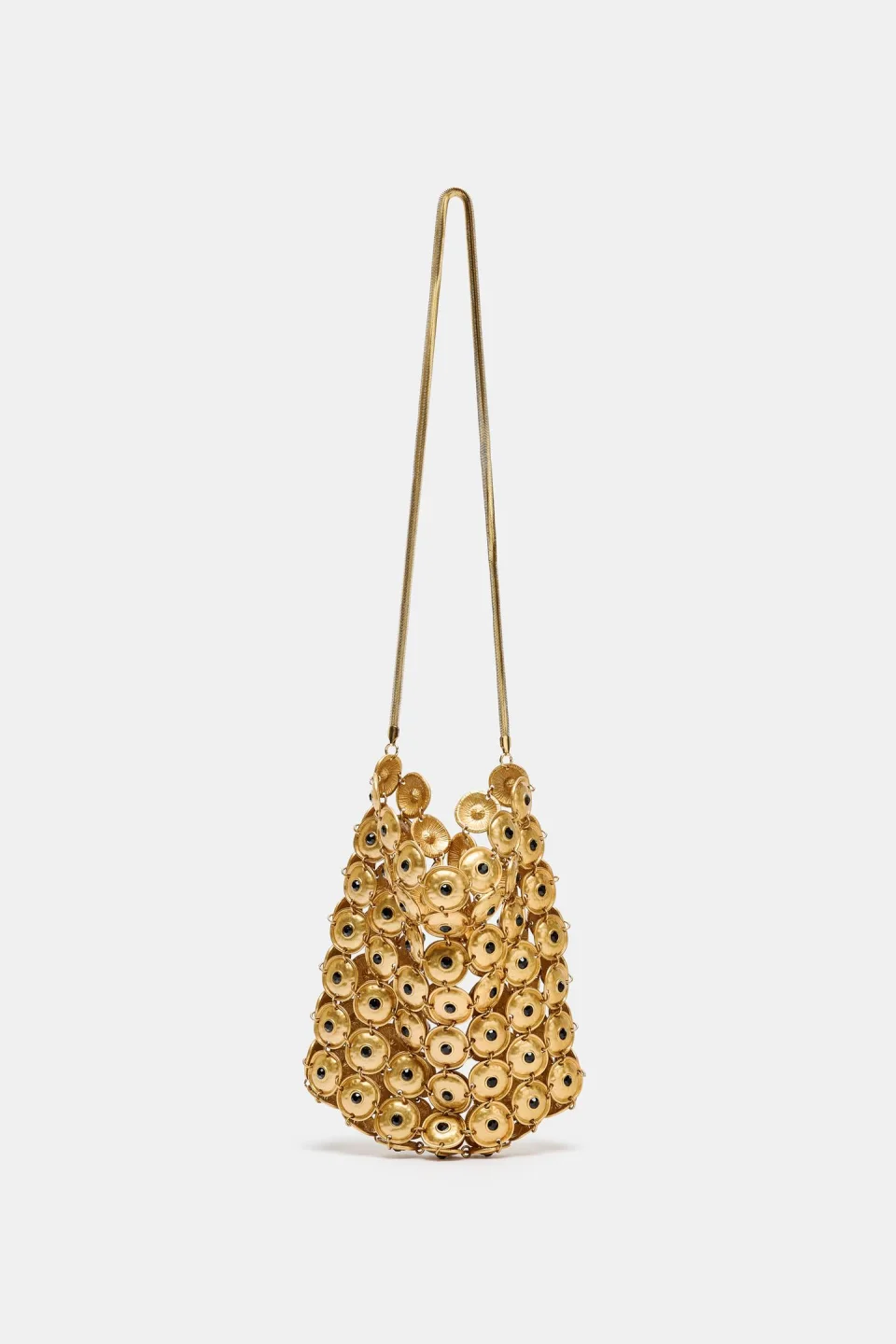
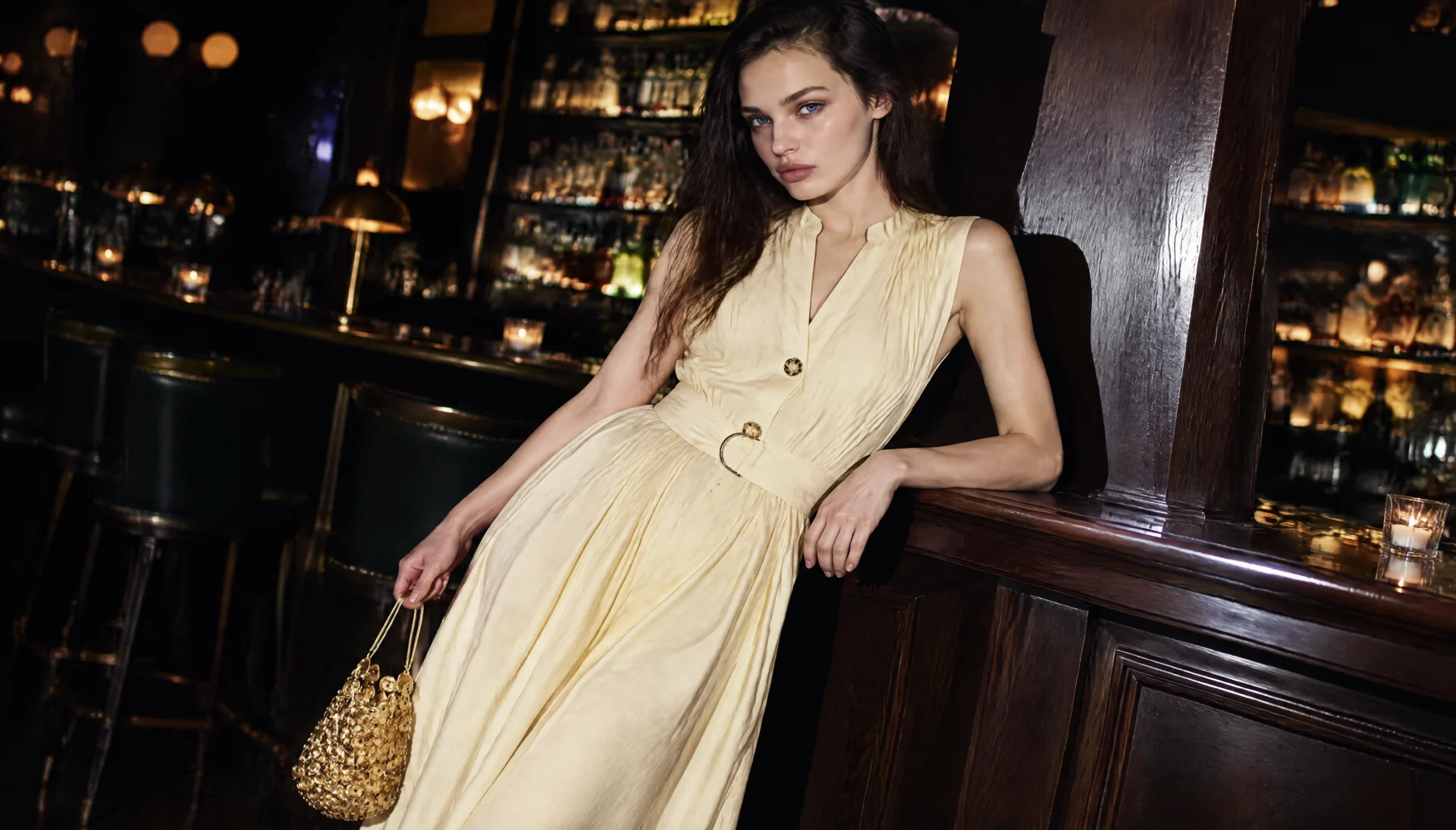
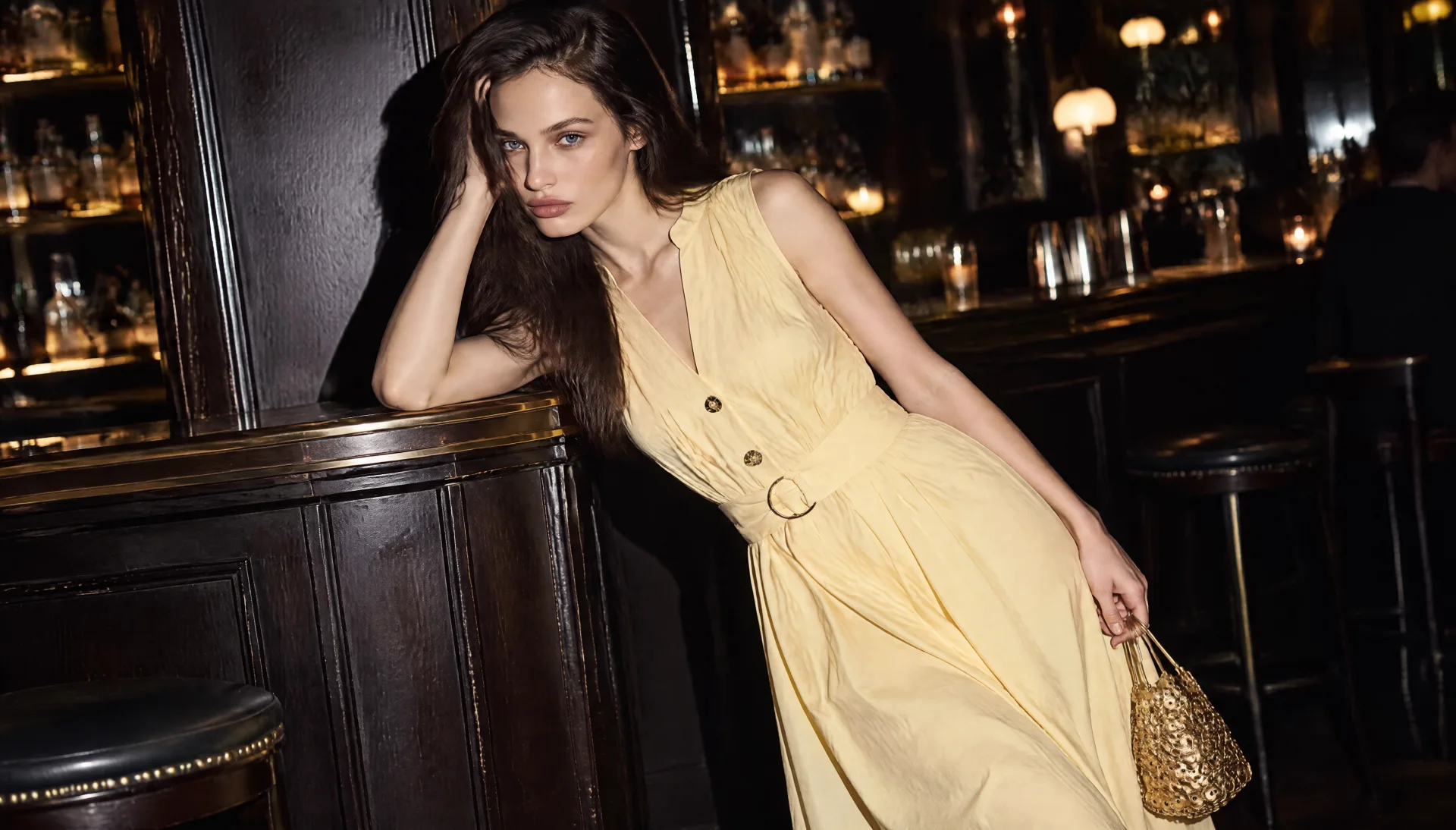
Separate reference images can start a complete outfit. In its September 9 example, Astria supplied a person portrait, a yellow dress and a gold bag, then used Sunburst and Flare to generate a nighttime bar scene. This suggests a way to see an outfit in context, beyond viewing each garment or accessory on its own.
Both outputs show the pale yellow dress, gold buckle and circular bag texture, with different poses and framing. Sunburst emphasizes a diagonal pose with the bag near the edge; Flare shows the complete bag. Pleats, the belt and accessory details also change, making these useful examples for discussing styling and composition.
Sources and notes
Astria generated one image per model from the same references; this does not establish exact reproduction of every product detail.
- Astria’s references and generated results ↗Creative-tool example · September 9The original includes the references, scene brief and both outputs.
- Developer announcement ↗OpenAI communityThe two models and creative-tool integrations.
What we are following
07What comes next中文
What we are following
- Which user creations and editing journeys are worth seeing?
- Which design, office and creative apps will adopt it?
- What are users discovering about repeated edits and Chinese typography?
See how these changes connect
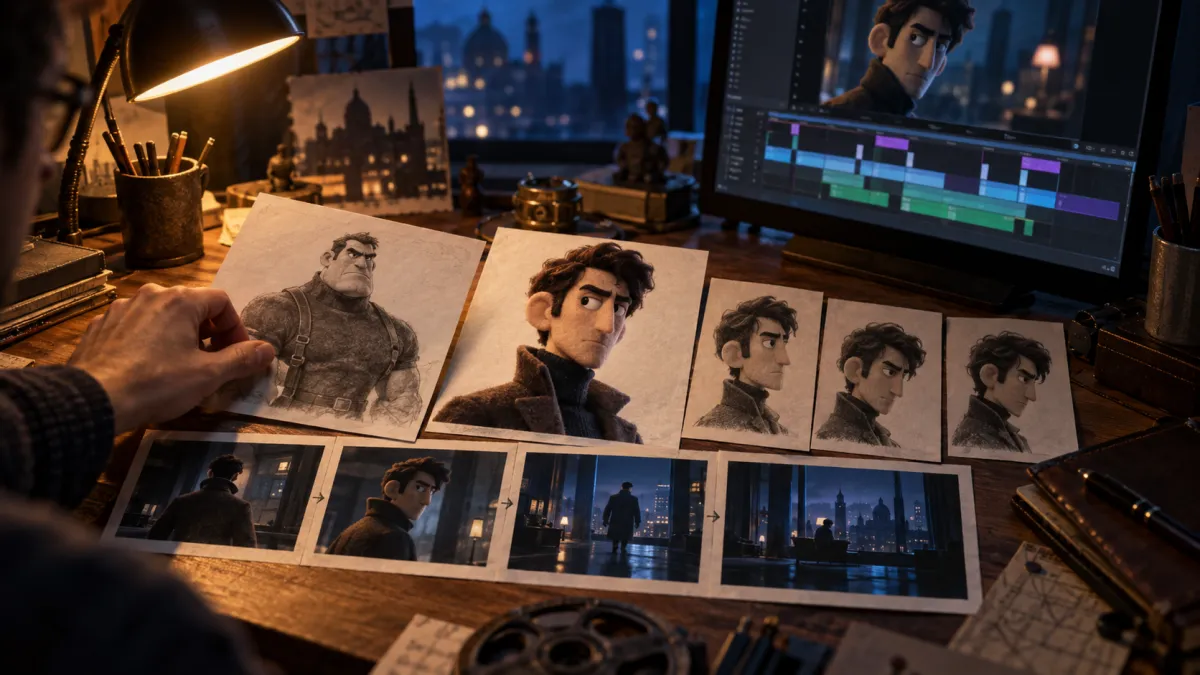
Editorial art · not film footage Put a still into a film: see how a maker caught character drift, revised the description and moved on to motion. This is a related creative task, not evidence that the film used GPT Image 2.5.
For a small edit before sharing, look at the tools already inside a messaging app.
Compare image editing with notes and 3D work to choose a route for your material.